
Family Link offers several mechanisms to manage a child’s screen time, but the feature that interests most parents remains poorly documented: the occasional addition of extra minutes without disabling the entire time frame. Google has integrated this “extra time” option directly into the app, allowing parents to grant an extension without undermining the previously set rules.
Extra time on Family Link: a native option still underutilized
The majority of online guides detail how to set daily limits or rest time slots. Few focus on the button that appears on the parent’s side when the child’s device locks after the quota is exhausted.
Family Link allows parents to manually grant additional time from the child’s device lock screen or from the parent app. The child sees a message indicating that their time is up, and the parent receives a notification suggesting to add minutes. This mechanism works as a temporary exception: it does not change the set daily limit; it only extends it for the current session.
Many parents are looking for tips to add time on Family Link even though this function exists natively. The issue lies in its lack of visibility in the interface: it only appears when the lock is already active, not in the general settings.

Limits by application or global limit: two different logics for managing time
Family Link distinguishes between two levels of control. The first, the most well-known, sets a global daily screen time for the entire device. The second, less used, allows setting limits by application.
This distinction changes the approach to adding time. If a child has used their global quota but needs to finish an exercise on an educational app, the parent can intervene in two ways:
- Grant global extra time, which unlocks the entire device for the chosen duration, including games and social networks
- Increase the specific limit of the concerned application, which does not affect the rest of the time frame
- Add the educational application to the list of applications without time limits, so it remains accessible even after locking
The third option is the least known. Family Link allows certain applications to be designated as exempt from restrictions. System applications cannot receive limits, but the opposite (exempting a third-party application) is configurable in the settings of each supervised application.
Weekly schedule on Family Link: modulating slots rather than lifting limits
Google has structured Family Link around a scheduling logic. Parents can set distinct hours for school days and rest days, with different availability slots depending on the day of the week.
This granularity allows for adding time proactively rather than reactively. Instead of waiting for the lock to grant emergency minutes, it is possible to configure a wider slot on Wednesday afternoons or weekends.
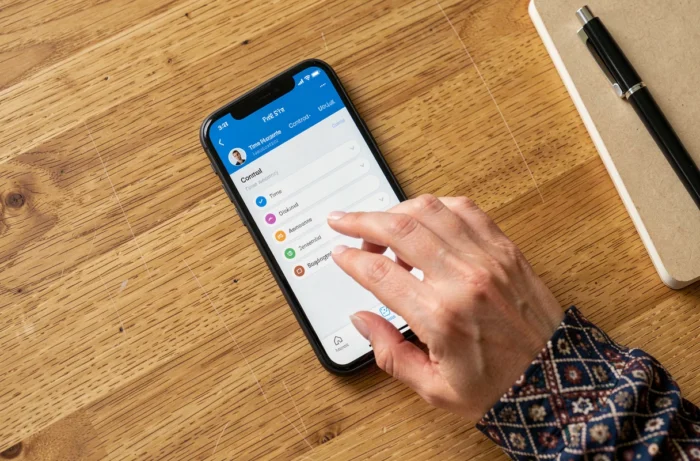
Configuration is done from the “Screen Time” tab of the Family Link app by selecting the child’s device. Each day has its own duration slider and availability time slots. An adjustment on Wednesday does not affect Monday.
This scheduling approach has a concrete advantage: it avoids daily negotiations. The child knows their slots in advance, and the parent does not need to intervene manually every evening.
Workarounds found online: why to avoid them
Forums are full of methods to bypass Family Link. Some involve changing the device’s clock, others uninstalling and then reinstalling apps, or using a second unsupervised Google account.
Google has gradually closed these loopholes. The child’s device clock can only be changed if time limits are disabled, making this manipulation ineffective as long as parental control is active. Bypass attempts noted on Reddit and other platforms often rely on older versions of Android or specific configurations that no longer work after an update.
Beyond the technical inefficiency, these methods pose a security problem. Temporarily disabling supervision to change a setting exposes the device to unfiltered downloads and unrestricted access to content. Field reports vary on the reliability of these tips, but the risk of compromising the entire parental control framework remains constant.
- Changing the system clock is blocked by Family Link as long as limits are active
- Creating an unsupervised account removes all protections (content filtering, Google Play restrictions, location sharing)
- Uninstalling Family Link requires access to the parent account and triggers a notification
Configuring Family Link to limit manual interventions
The initial setup determines how often a parent will need to add time later. A setting that is too restrictive generates daily requests. A setting that is too lenient renders the tool useless.
The most balanced configuration combines three elements: a daily screen time adapted to the day of the week, specific limits on the most time-consuming applications (games, videos), and a list of exempt applications for school or family use.
Family Link works on devices running Android 7 or later. On Chromebooks, the same rules apply with a slightly different interface. The parent app is available on Android and iOS, allowing adjustments to be managed from any phone.
Adding time on Family Link should not be a daily gesture. If a parent has to extend their child’s session every evening, the problem does not lie with the tool but with the initial setup. Reviewing weekly time slots and application limits is usually enough to reduce these interventions to exceptional situations.